
If you administer Microsoft Dynamics 365 Finance and Operations (D365 F&O), you have almost certainly received this email at 2 a.m., during month-end close, or right before a customer call:
“A problem was encountered while processing your request.”
It is one of the most common, and most unhelpful, notifications in the entire platform. The message confirms that a scheduled process, often the Order invoice LATE batch job that automatically invoices sales orders, has failed. What it does not tell you is why. No error code, no table name, no line item, nothing actionable in the inbox.
This gap between “something broke” and “here is what broke” is the single biggest source of frustration for D365 F&O system administrators, finance managers, and support teams. The good news is that D365 F&O does capture the real error, it is just buried a few clicks deep inside the batch job history rather than the email itself.
This guide walks you through the exact, repeatable process for finding the true root cause of a D365 F&O batch job error, and then breaks down the four most common reasons that automated sales order invoicing fails, along with practical, permanent fixes for each one. Whether you are troubleshooting a single failed invoice or trying to build a more resilient invoicing process, this is the complete playbook.
Why the D365 F&O Error Notification Is So Vague
Before jumping into the fix, it helps to understand why Microsoft designed the alert this way. The batch framework in D365 F&O is built to run thousands of jobs across finance, supply chain, and retail modules simultaneously. The generic notification exists purely as a trigger, a signal that tells a human “go look,” rather than a full diagnostic report. Embedding a complete stack trace or SQL exception inside an automated email would be a security and readability risk, since these logs can contain sensitive internal object names, connection details, or customer data.
Instead, Microsoft routes the detailed diagnostic information into the Batch job history and Task log, which are only accessible to users with the right security roles inside the application. That design choice is reasonable from a platform perspective, but it does mean every organization needs a documented, repeatable process for chasing down the real sales order invoice error. That is exactly what the next section provides.
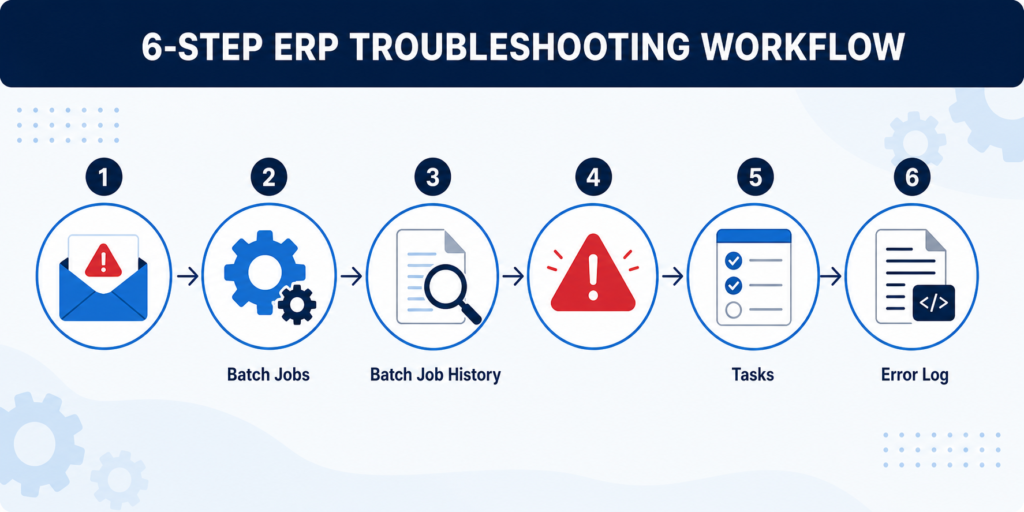
Step-by-Step: How to Find the Root Error in D365 F&O
Follow this sequence every time you receive a generic batch failure notification. It works for the Order invoice LATE job and, with minor variations, for virtually any other failed batch task in D365 Finance and Operations.
Step 1: Navigate to Batch Jobs
Go to System administration > Inquiries > Batch jobs. If you would rather skip the menu navigation, simply type “Batch jobs” into the global search bar at the top of the D365 F&O workspace and select it from the results. Both paths land you on the same list page.
Step 2: Locate the Failed Job
D365 environments can have hundreds, sometimes thousands, of recurring batch jobs. Rather than scrolling manually, use the filter on the Job description column and search for the specific job name, in this case, Order invoice LATE. This immediately narrows the grid down to the exact automated invoicing job you are troubleshooting.
Step 3: Open the Batch Job History
Select the job by clicking anywhere on its row (avoid clicking the underlined Job ID link, since that opens the job configuration rather than the run history you actually need). With the row selected, click Batch job history on the Action Pane at the top of the page. This opens a chronological list of every time that job has executed, along with its outcome.
Step 4: Find the Failed Execution
In the history grid, look for the entry where the Status column shows Error. Match the date and time against the timestamp in the notification email you received to make sure you are inspecting the correct run, particularly if the job runs multiple times per day.
Step 5: Check the Main Log
With the failed execution selected, click the Log button on the Action Pane. Occasionally, the top-level error, such as a generic .NET exception or a timeout message, is visible directly here. This is worth checking first because it can save you a step, but it is often too high-level to explain the true business cause of the failure.
Step 6: Check the Task Log (This Is the Crucial Step)
If the main log is empty, generic, or simply says something like “One or more tasks failed,” close that dialog and click View tasks, also located on the Action Pane. A single batch job is usually made up of multiple individual tasks (one per sales order, or per batch of transactions, depending on your configuration). Scan this list for the specific task showing an Error status, select it, and click the Log button for that line.
This task-level log is where the real, technical root cause almost always lives. You will typically see something specific, such as:
- “Ledger posting failed. Period does not exist or has been closed.”
- “Cannot edit a record in Sales tax groups (TaxGroupData). The record has been deleted by another user.”
- “Cannot create a record in Customer transactions (CustTrans). The customer is stopped for invoicing.”
That single line is the actual answer to “what broke,” and it is the starting point for the actual fix rather than just the symptom.
Common Causes for Sales Order Invoice Failures in D365 F&O
Once you have the detailed task log open, the error message will usually point you toward one of a handful of well-known culprits. Below is a breakdown of the most frequent root causes for automated sales order invoice failures, along with the practical resolution for each.
1. Closed or On-Hold Financial Period
This is, by a wide margin, the most common cause of failed invoice batches. The system attempts to post the invoice voucher to a date that falls inside a fiscal period that is closed, on hold, or does not exist yet in the ledger calendar.
How to confirm it: The task log will reference a posting or ledger period error, sometimes phrased as “period does not exist” or referencing the fiscal calendar.
How to fix it:
- Go to General ledger > Ledger setup > Ledger calendars and confirm the relevant period’s status.
- If the period is closed for Operations, but should still allow processing, a finance manager may need to temporarily reopen it, post the transaction, and then reclose it under proper controls.
- If the fiscal year or period does not exist at all (a common issue in new legal entities), create it under General ledger > Ledger setup > Fiscal year.
It is worth noting a subtlety here that many administrators miss: some newer platform features change how period validation is enforced during batch invoicing versus manual invoicing, which can create scenarios where manual posting works but batch posting silently fails. If you notice this exact split in behavior, check Feature management for recently enabled invoicing or posting-related features, since a feature toggle can sometimes be the true root cause rather than the calendar itself.
2. Missing Setup Data (Posting Profiles and Tax Groups)
Automated invoicing depends on a complete chain of financial setup being correct for every combination of customer, item, and transaction type involved. If any link in that chain is missing, the batch task fails.
Typical missing setup issues include:
- A posting profile (Accounts receivable parameters or specific customer posting profile) missing a main account for a particular transaction type, such as freight, tax, or a specific item group.
- A sales tax group or item sales tax group combination that does not have a valid tax code assigned, resulting in a tax calculation error during invoice posting.
- A financial dimension that is required but left blank, if your organization enforces mandatory dimension rules.
How to fix it: Cross-reference the specific account or group named in the task log with Accounts receivable > Setup > Posting profiles and General ledger > Setup > Sales tax > Sales tax groups. Fill in the missing main account or tax code, then reprocess the failed sales order.
3. Inventory or Financial Record Locks (Deadlocks)
In high-volume environments, it is common for the invoicing batch to attempt to update a record, such as an inventory transaction, a customer transaction, or a sales order line, at the exact moment another process (a warehouse mobile device transaction, a concurrent batch job, or a manual user edit) is holding that same record. SQL Server detects the conflict and terminates one of the transactions to resolve it, which shows up as a deadlock error in the task log.
How to fix it: Deadlocks are usually transient. In most cases, simply resubmitting the specific failed sales order for invoicing will succeed once the competing process has completed. If deadlocks on the same table recur frequently, it is a sign of a genuine batch scheduling or concurrency problem, and it is worth reviewing batch group configuration and server thread allocation with your Microsoft partner or Lifecycle Services environment monitoring tools.
4. Customer or Item Stopped for Invoicing
D365 F&O allows administrators to mark a customer or an item as “Stopped” for specific transaction types, most commonly to place a credit hold on a delinquent account or to pause shipments and invoicing on a discontinued product. If an order contains a stopped customer or a stopped item, the automated invoice batch will fail that specific task by design.
How to fix it:
- Check the customer record under Accounts receivable > Customers > All customers, on the Invoice and delivery or Credit and collections fast tabs, for a “Stopped” status.
- Check the item under Product information management > Products > Released products, on the Manage inventory or Engineering fast tabs, depending on your version, for a similar stopped flag.
- If the stop is intentional (for example, a legitimate credit hold), this is not really a “bug,” it is the system working as designed, and the order should be handled manually per your credit policy rather than reprocessed automatically.
Building a More Resilient Sales Order Invoicing Process
Finding the root cause after the fact is essential, but the more mature approach is reducing how often these failures happen in the first place. A few practices that consistently reduce batch invoicing failures in production D365 F&O environments include:
- Pre-validate financial periods at least one period ahead using a recurring reminder or workflow, so period-closure conflicts never reach the batch queue.
- Run a setup completeness check whenever a new item, customer, or tax jurisdiction is onboarded, confirming posting profiles and tax groups exist before the first order is created.
- Separate high-volume invoicing batches from other heavy processes in your batch group and server configuration to reduce the chance of deadlocks during peak hours.
- Document credit hold and item stop policies clearly so that “stopped” failures are recognized immediately as expected behavior rather than treated as a system bug each time.
- Review batch job history on a schedule, not just reactively, so intermittent failures are caught before they compound into a large backlog of unbilled orders.
Treating batch job monitoring as a proactive discipline, rather than a purely reactive one, is what separates high-performing D365 F&O support teams from those that are constantly firefighting.
Frequently Asked Questions
Why does the D365 F&O error email not include the actual error message?
The notification is designed as a lightweight alert rather than a full diagnostic report. The detailed technical error is stored in the batch job’s task log for security and readability reasons, and must be retrieved manually through Batch job history.
What is the difference between the main Log and the Task Log?
The main log reflects the overall batch job execution and may only show a high-level summary. The task log reflects the individual unit of work inside that job (for example, one sales order), and typically contains the precise, technical root cause.
Can I automate root cause detection for recurring batch failures?
Yes. Many organizations build Power Automate flows or custom alerts that parse batch job history and task logs automatically, then route specific error categories (period closed, stopped customer, missing setup) to the correct team without manual investigation.
Final Thoughts
A generic “a problem was encountered” email in Dynamics 365 Finance and Operations is not the end of the investigation, it is only the starting point. By navigating directly to System administration > Inquiries > Batch jobs, drilling into Batch job history, and checking the Task log on the specific failed line, you can consistently uncover the true root cause behind failed sales order invoice batches in a matter of minutes rather than guessing at fixes.
Most failures trace back to one of four familiar issues: a closed financial period, missing posting profile or tax setup, a transient record lock, or a customer/item that has been intentionally stopped. Once you know which one you are dealing with, the fix is usually straightforward and well documented.
If your organization is dealing with recurring D365 F&O batch job errors, incomplete financial setup, or you simply want a second set of expert eyes on your automated invoicing configuration, reach out to our team for a free consultation. We help finance and IT teams build more resilient, better-monitored D365 environments so that a 2 a.m. batch failure email becomes a rare event rather than a weekly occurrence.
Related Resources
- How to Configure Batch Groups and Server Instances in D365 F&O
- A Complete Guide to Posting Profiles in D365 Finance and Operations
- Setting Up Sales Tax Groups Correctly in D365 F&O
- Understanding Credit Holds and Stopped Customers in Accounts Receivable
- D365 F&O Support Services
External References
- Microsoft Learn: Troubleshoot business events in Finance and Operations
- Microsoft Learn: Fix common statement posting issues in Commerce
- Microsoft Learn: Ledger calendars and fiscal periods overview
- Microsoft Learn: Batch processing overview in Finance and Operations
- Dynamics Community: D365 FO Batch Management Service troubleshooting
Leave a Reply
You must be logged in to post a comment.